
Selecting NexGPS II as Your Speed Source
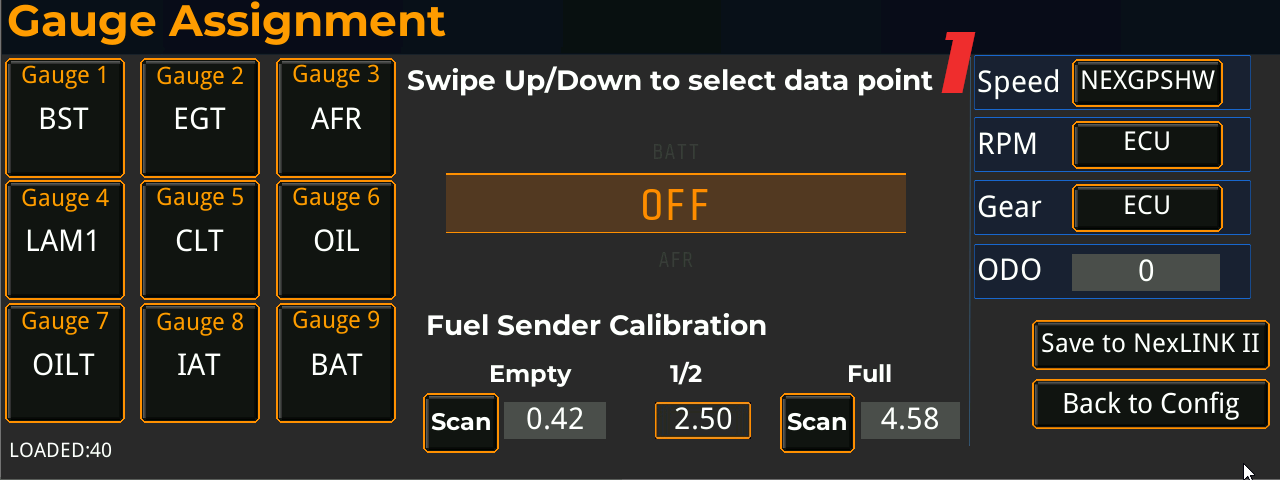
Before you can use the Roll Race or Drag Strip timing screens, you need to tell the dash to read speed from your NexGPS II module instead of the EFI.
On the Gauge Assignment screen, find the Speed selector (#1, top right). Tap it to cycle the speed source until it reads NEXGPSHW. This sets NexGPS II as the source for live ground speed and distance — the data that drives all GPS timing features.
The options are:
- VSS — vehicle speed from the EFI / vehicle speed sensor
- NEXGPSHW — GPS speed and distance from your NexGPS II module
With NEXGPSHW selected, tap Save to NexLINK II (bottom right) to store the setting. Your speed, odometer, and the Roll Race / Drag Strip screens will now run off NexGPS II.
Drag Strip — Full-Run Timing
The Drag Strip screen uses your NexGPS II module to time a full drag pass — capturing ET and trap speed at every standard distance marker, plus 0-to-speed times and live g-force. Because timing is driven by GPS distance and speed, you must select NEXGPSHW as your speed source in the Gauges screen for Drag Strip to function. With NEXGPSHW active, the dash reads live ground speed and distance from NexGPS II to trigger and time the run.
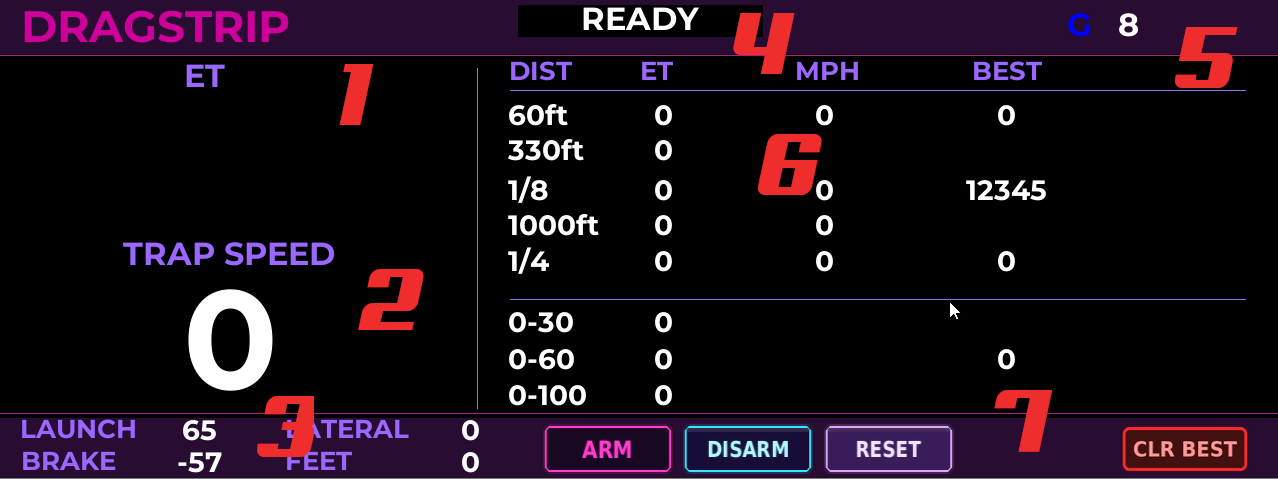
1 – ET
Live elapsed time for the current run, counting up from launch. This is your running clock for the pass in progress.
2 – Trap Speed
Live GPS speed from NexGPS II during the run — your current speed, and the value captured as trap speed at the 1/8 and 1/4 mile marks.
3 – Launch / Brake / Lateral / Feet
Live telemetry along the bottom.
- LAUNCH — launch g-force off the line
- BRAKE — braking g-force (negative under deceleration)
- LATERAL — side-to-side g-force
- FEET — live distance covered, in feet, as the run progresses
4 – Status Banner
Shows the current state of the run: READY when idle, ARMED once armed and waiting to launch, RUNNING while a pass is in progress, and FINISHED when the run completes.
5 – GPS Satellites
Live satellite count from NexGPS II. A higher count means a stronger lock and more accurate distance and speed.
6 – Results (DIST / ET / MPH / BEST)
Per-marker results captured automatically as you cross each distance. The upper block is distance-based, the lower block is speed-based.
Distance markers:
- 60ft, 330ft, 1/8, 1000ft, 1/4 — ET at each marker, with trap MPH captured at the 1/8 and 1/4 mile points
- BEST — your best recorded result for that marker, retained across runs
0-to-speed times:
- 0-30, 0-60, 0-100 — elapsed time to reach each speed from launch, with best times retained
7 – Controls
- ARM — arm the system; the clock starts automatically when NexGPS II detects your launch
- DISARM — back out without clearing results
- RESET — clear the current run and return to READY
- CLR BEST — wipe all saved BEST times
Roll Race — Speed-to-Speed Timing
The Roll Race screen uses your NexGPS II module to time speed-to-speed pulls — measuring elapsed time and trap speed across up to three user-defined MPH ranges. Because timing is driven by GPS speed, you must select NEXGPSHW as your speed source in the Gauges screen for Roll Race to function. With NEXGPSHW active, the dash reads live ground speed from NexGPS II and uses it to trigger and time each range.
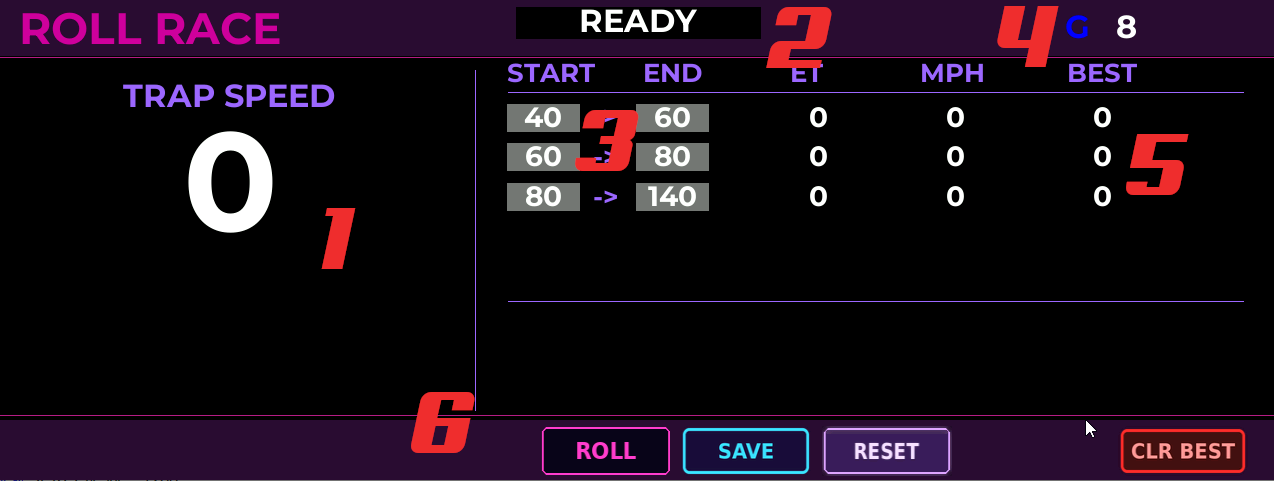
1 – Trap Speed
Live GPS speed readout from NexGPS II, updated in real time as you drive. This is your current speed during a run, measured against each START → END range to capture trap speed and elapsed time.
2 – Status Banner
Shows the current state of the run. Displays READY when armed and waiting, ARMED once the countdown finishes and the system is watching for your start speed, SAVED after you store a run, and FINISHED when all your speed ranges have been completed. When you press ROLL, a 5-4-3-2-1-GO countdown plays first. GO arms the system — timing for each range begins automatically when your GPS speed crosses that range’s START value, not on GO itself.
3 – Speed Ranges (START → END)
Three user-defined MPH ranges that trigger timing. Each row sets a start speed and an end speed — for example 40→60, 60→80, 80→140. Once armed, the timer for a range begins when your GPS speed crosses its START value and stops at the matching END value. Tap a field to edit the speed.
4 – GPS Satellites
Live satellite count from NexGPS II. A higher count means a stronger lock and more accurate speed and timing.
5 – Results (ET / MPH / BEST)
Per-range results for the current pass.
- ET — elapsed time to cover that START → END range
- MPH — speed captured at the END point (trap speed for that range)
- BEST — your best recorded ET for that range, retained across runs
6 – Controls
- ROLL — start the countdown and arm the system for a timing pass
- SAVE — store the current run’s results
- RESET — clear the current run values and return to READY
- CLR BEST — wipe the saved BEST times for all ranges