NexDAQ — Wireless Data Logger
NexDAQ is a free Android app that captures real-time data from your NeX Digital Dash over Bluetooth Low Energy (BLE). Log full driving sessions, review them frame-by-frame, and tune with confidence.
What You Need
- Android device (Android 8.0 / Oreo or newer)
- A NexLINK I or II module paired with a Pro Edition or NeX Digital Dash
- Bluetooth enabled on your phone or tablet
- At least 50 MB of free storage to start a recording
DOWNLOAD NexDAQ by Clicking here! Do this from your Android device unless you know how to sideload.
Enabling BLE communications on the Pro Edition and NeX Ultrawide
Before NexDAQ can connect to your dash, BLE has to be turned on at the dash itself. The procedure differs slightly between the two products.
Pro Edition
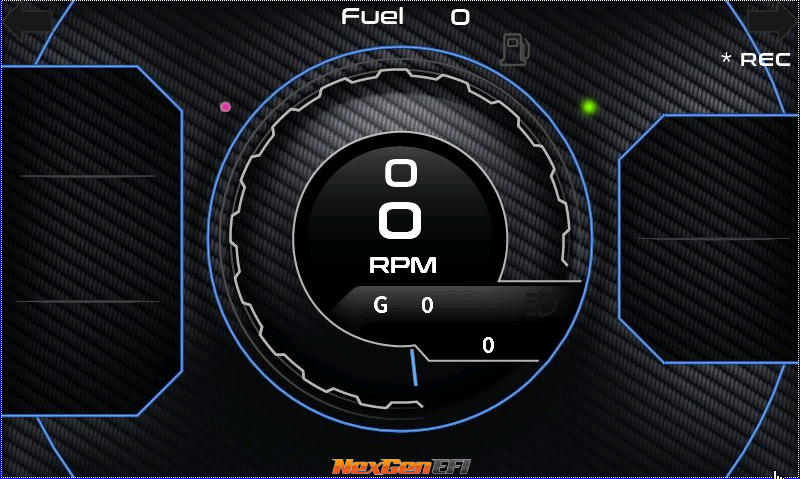
Press and hold your finger on the * REC indicator on any layout (see sample screenshot) for 2–3 seconds. When BLE turns on, the * REC indicator changes from white to green — that means the dash is now advertising and is visible to the NexDAQ app’s scan.
To turn BLE back off, press and hold the * REC indicator again for 2–3 seconds. The indicator returns to white, the dash stops advertising, and it disappears from the app’s scan list.
While an app is connected, the indicator is blue.
NeX Ultrawide
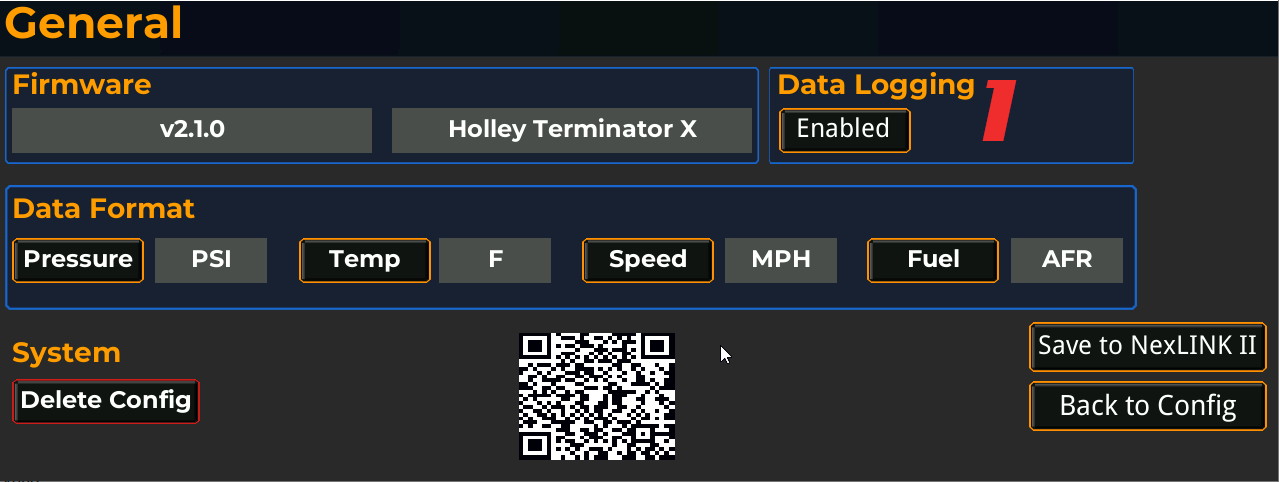
Open the dash’s General configuration section and tap the (1) Enabled / Disabled button to toggle BLE on or off. The button label reflects the current state — Disabled when off, Enabled when on.
When the button shows Enabled, the dash is advertising and is visible to the NexDAQ app’s scan. Tap it again to return to Disabled and stop advertising.
First Run
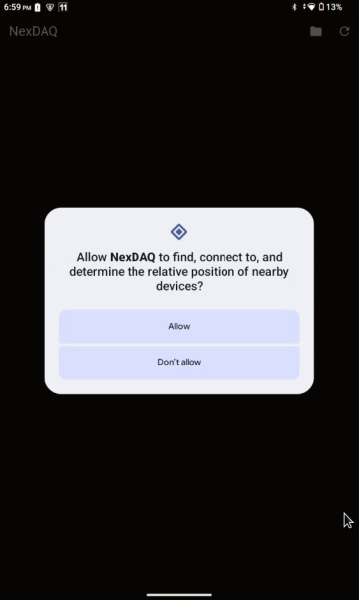
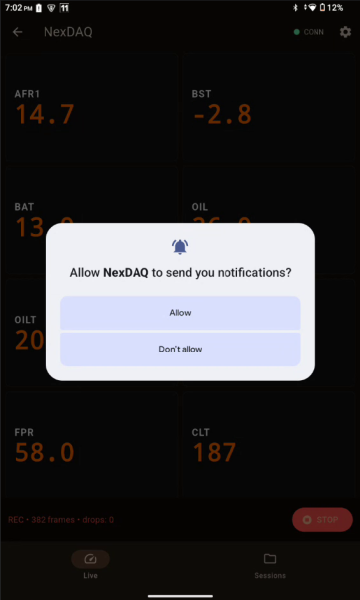
The first time you open NexDAQ, Android will request two permissions:
- Bluetooth — needed to find and connect to your NexLINK I or NexLINK II
- Notifications — needed to keep recording active when your screen is off
Tap Allow for both. You’ll only see these prompts once.
Connecting
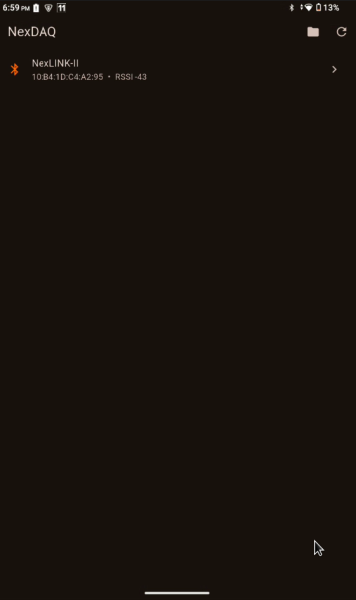
- Open NexDAQ. The Scan screen lists nearby NexLINK devices.
- Tap your NexLINK II when it appears.
- The Live screen opens and shows live values from the dash.
The green CONN indicator in the top-right confirms you’re connected.
Live View
The Live screen shows all configured gauges in a numeric grid:
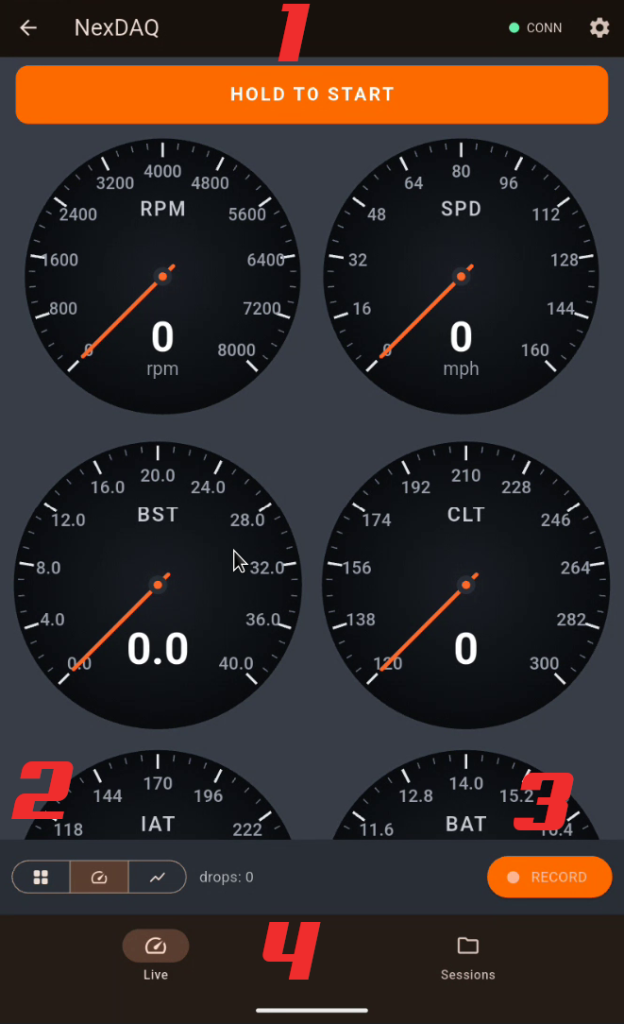
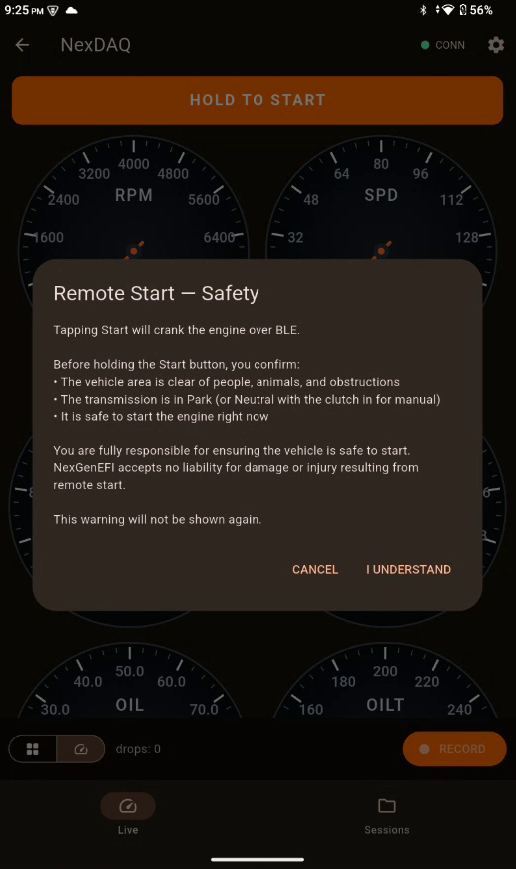
- (1) HOLD TO START — This feature starts the vehicle if you have a NexLINK II and a NeX ultrawide digital dash ONLY. There will be a disclaimer you will have to agree to before this feature works AND you will need to enable AutoStart on the NeX series configuration screen (see documentation for the NeX to configure/enable).
- (2) Digital, Analog or Live view Graph — current value, name, and unit for each channel represented as text or an Analog gauge. Pressing the grid shows digital, pressing the Analog graphic switches to Analog as seen in the screenshot and pressing Graph shows a live graph representation.
- (3) RECORD button — starts or stops a recording session
- (4) Live / Sessions — Switches between data logged Sessions and the Live data view.
- Frame counter — shows total frames received and any dropped frames
Which Channels Are Displayed
NexDAQ shows whatever channels the dash is configured to send. The channel list always includes:
- RPM and Speed — automatically included on every layout
- Plus the additional gauges you’ve configured on the dash (boost, AFR, coolant temp, etc.)
The channel set comes from the dash, not the app. To change which gauges appear in NexDAQ, edit the layout on your NeX dash or Pro Edition — NexDAQ mirrors whatever the dash sends. A standard layout typically sends 7 channels; a race layout sends 11.
If you switch layouts on the dash while connected, the gauges in NexDAQ refresh automatically to match the new configuration.
You can change the grid layout (1, 2, or 3 columns) from Settings → Grid columns.
Recording
Tap RECORD to start logging. While recording:
- The button turns red and changes to STOP
- A persistent notification appears in your status bar showing frame count and elapsed time
- Recording continues if you lock the screen or switch to another app
- The
* RECindicator on the dash itself changes color to show recording state (see Dash Status Colors below for the full meanings on each dash) - Tapping on the graph places a “Marker” which can be seen as a yellow vertical line on the playback session.
Tap STOP to end the session. The file is saved automatically with a timestamped name.
Dash Status Colors
The * REC indicator on the dash shows different things depending on which dash you have. They’re answering different questions, so the color schemes are different.
NeX Ultrawide Digital Dash (NexLINK II)
The indicator reflects recording state only. BLE connection status is shown elsewhere on the dash.
| Color | Meaning |
|---|---|
| Gray | Not recording (whether or not the app is connected) |
| Green | Actively recording — frames are being saved to the phone |
Pro Edition (NexLINK I or NexLINK II)
The indicator reflects BLE link state. The app’s status notification surfaces recording state separately.
| Color | Meaning |
|---|---|
| White | BLE is disabled — the dash is not advertising and the NexDAQ app cannot see it |
| Green | BLE is enabled and advertising — the dash is ready but no app is connected |
| Blue | An app is connected to the dash |
Press the dash’s NexDAQ button to toggle BLE on or off. When disabled, the indicator returns to white and the dash disappears from the app’s scan list.
Background Recording
NexDAQ keeps recording when:
- The screen is locked
- You switch to another app (browser, music, navigation, etc.)
- You return to the home screen
Tap the persistent notification to jump back into NexDAQ at any time.
Long recordings (rallies, road trips): some Android phones aggressively hibernate apps to save battery. Exclude NexDAQ from battery optimization for uninterrupted long sessions:
Settings → Apps → NexDAQ → Battery → Unrestricted
(exact steps vary by phone manufacturer)
Storage Management
NexDAQ watches available storage during every recording:
| Free Space | Behavior |
|---|---|
| Above 25 MB | Recording normally |
| Below 25 MB | Orange warning banner appears |
| Below 10 MB | Recording auto-stops cleanly with a red notice |
| Below 50 MB | New recordings won’t start |
A typical session is around 4.5 MB per hour, so 50 MB is plenty for ~10 hours of logging.
Reconnect Banner
If you drive out of Bluetooth range or the dash powers off during a recording:
- A yellow Reconnecting… banner appears at the top of the app
- Recording continues — the file will have a gap for the disconnect period
- When the connection comes back, a green Reconnected banner flashes briefly
You don’t need to do anything — NexDAQ handles the reconnection automatically.
Sessions
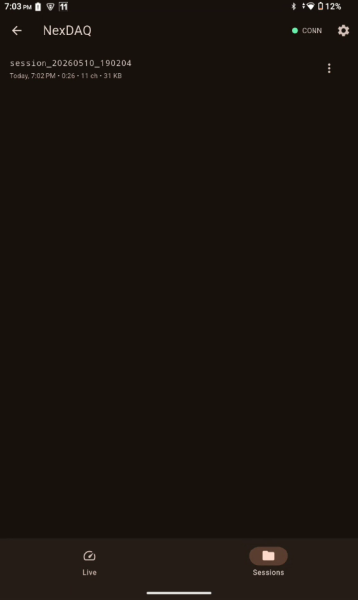
The Sessions tab lists every recording you’ve made, newest first. Each row shows:
- Session name (defaults to timestamp)
- Date, duration, channel count, and file size
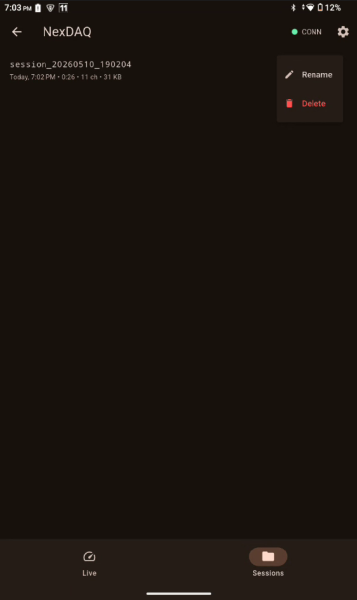
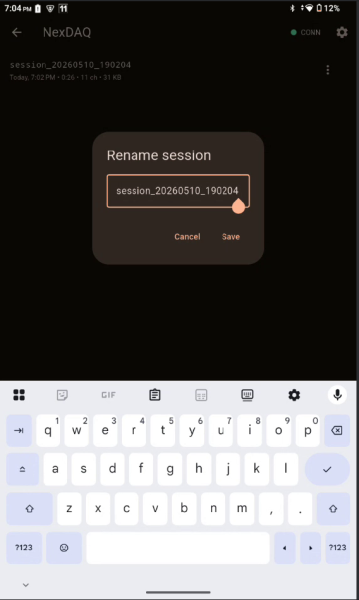
Rename a session
Tap the ⋮ menu on the right side of any session → Rename. Type a meaningful name like “Before adjusting boost” or “First WOT run” and tap Save.
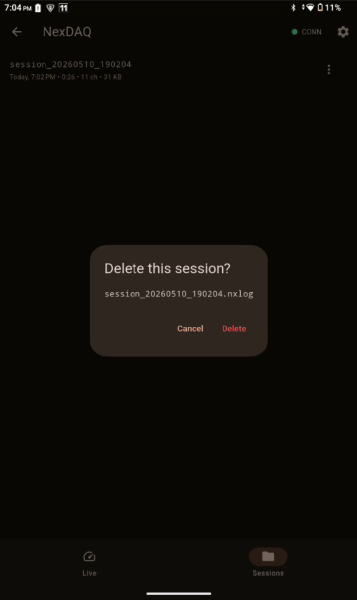
Delete a session
Either swipe the session row to the left, or use the ⋮ menu → Delete. Both ask for confirmation first.
Playback
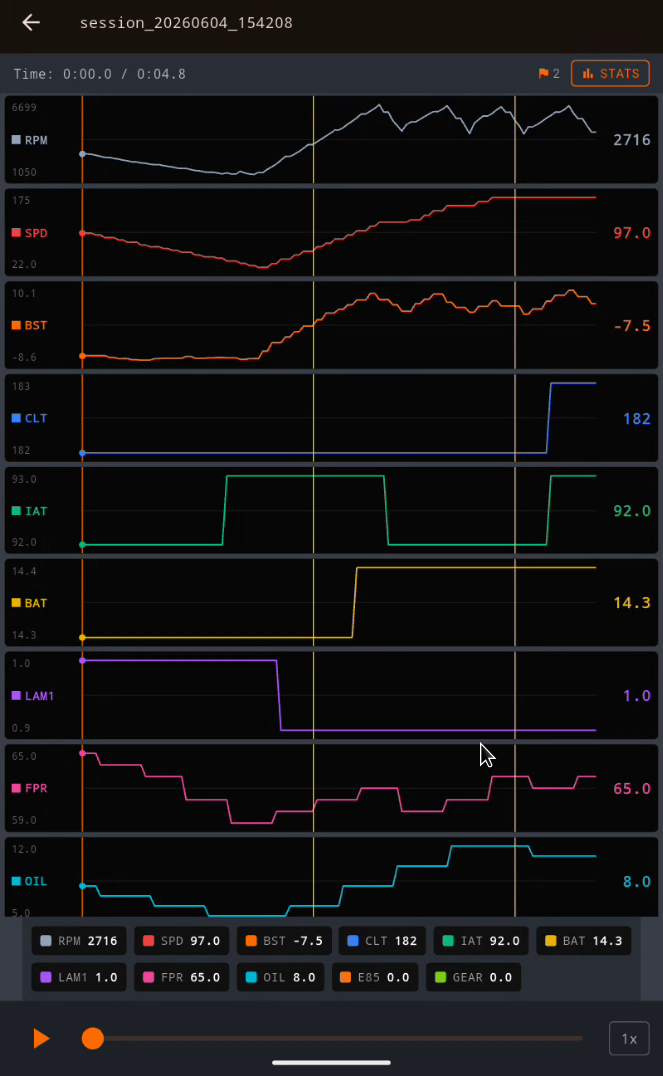
Tap a session to open the Playback screen. You’ll see a stacked chart with one mini-graph per channel:
- Each track is independently scaled to its own min/max, so small variations look small and large swings look large
- The orange vertical line marks your current position
- All tracks stay in sync as you scrub
- YELLOW vertical lines are the markers you placed at that time during the recording session.
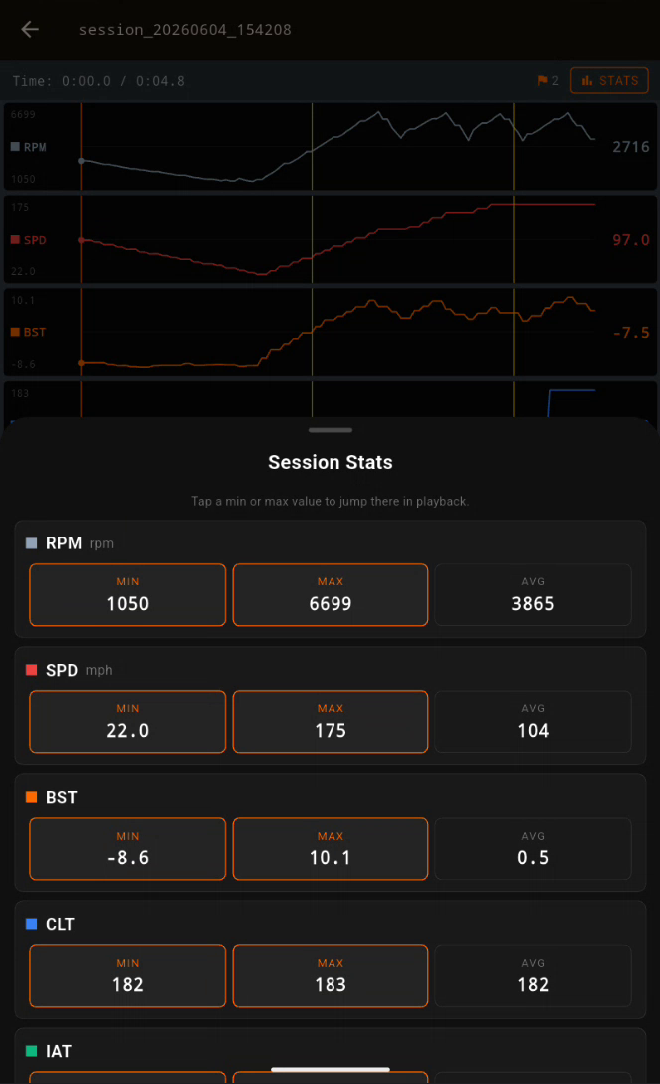
- Stats button shows High/Low/Average for each logged datapoint.
Playback controls
- Tap or drag any track to scrub to that moment
- Bottom slider scrubs across the whole session
- Play button plays back at real time, automatically advancing the scrub line
- Speed button (1x / 2x / 4x) cycles playback speed
Customize the view
- Tap a channel chip at the bottom to show or hide that channel
- Long-press a chip to change its color from a 16-color palette
Hidden channels and color choices are remembered per-session.
Settings
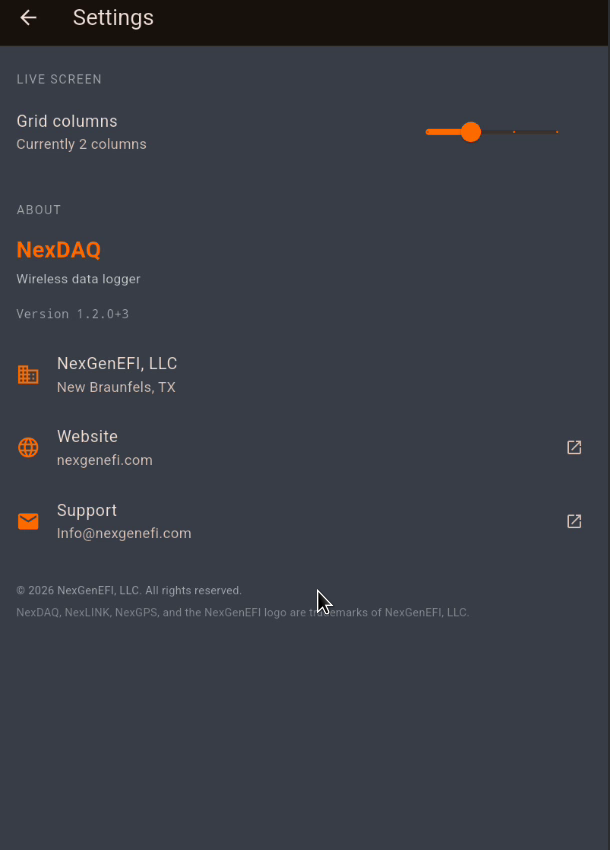
Tap the gear icon in the top-right of the app to access:
- Grid columns — change the Live view layout (1, 2, or 3 columns)
- About — version info, contact details, and copyright
Troubleshooting
App says “Waiting for manifest…”
The dash hasn’t sent the channel list yet. Wait 2–3 seconds. If it persists, power-cycle the NeX dash or tap Refresh on the scan screen and reconnect.
Recording stops when I lock my phone
Android is hibernating the app. Set NexDAQ to Unrestricted in battery optimization (see Long recordings above).
No devices found
- Check that the NeX dash and NexLINK II are powered
- Check that Data Logging is enabled in General on the NeX dash
- Tap Refresh in NexDAQ
- Make sure Bluetooth is enabled on your phone
Sessions tab is empty
You haven’t recorded anything yet, or you started in offline mode. Connect to the dash and tap RECORD to capture your first session.
Support
- Website: nexgenefi.com
- Email: info@nexgenefi.com
© 2026 NexGenEFI, LLC. All rights reserved.
NexDAQ, NexLINK, NexGPS, and the NexGenEFI logo are trademarks of NexGenEFI, LLC.